
TV Cast for Chromecast
EVOLLY.APPTools
3.73.21K Reviews
- Version
- 1.4.5
- Installs
- 10.00M
- Age Rating
- Everyone
Screenshots
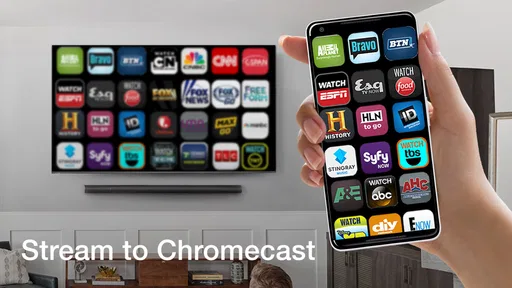
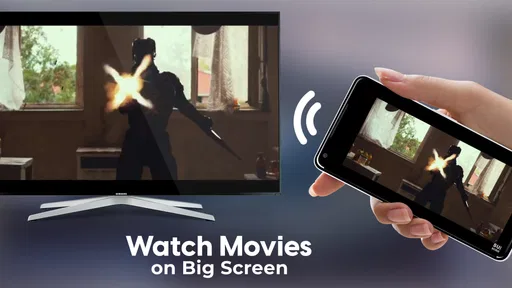
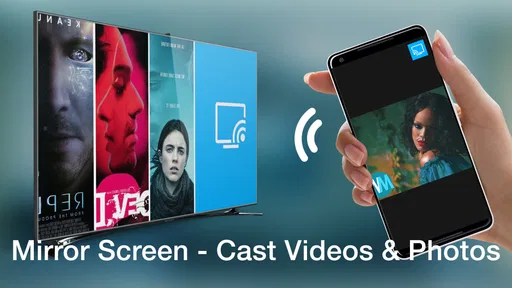
Our Review of TV Cast for Chromecast
 Analysis by Appyee
I find a phone-to-TV casting app most useful when it saves a little friction in an ordinary evening: a clip that is awkward to watch on a small display, a video someone wants to share, or a page I want to browse from the couch. TV Cast for Chromecast is a free tools app from EVOLLY.APP built around that simple job. Its appeal is less about replacing every way you watch television and more about giving your phone a direct route to a Chromecast screen when the content starts on the phone.
A practical starting routine
My best advice is to treat the first cast as a short setup check rather than assuming the TV will appear automatically. Make sure the phone and Chromecast are on the same Wi-Fi network, open the app, then look for the casting option after choosing what you want to watch. If the connection does not show up, checking the network on both devices is a more useful first move than repeatedly tapping the cast control. That small habit can prevent the confusing start I ran into when I initially overlooked the shared-network requirement.
The app’s central promise is broad: screen mirroring, video casting, and screen sharing to Chromecast TV. Those are related but not identical tasks. Casting a video is usually the better choice when you want the television to play one item while you use your phone for something else. Mirroring is more appropriate when the material is on the phone’s screen and you need the TV to show the whole display. I would choose based on the content, not simply use one mode for everything.
Settings and choices that affect the experience
Before settling in, I would check the display and playback choices available in the app and on the TV, then do a brief test with an unimportant clip. A quick test makes it easier to distinguish a connection problem from a video or website that does not behave well when cast. It is also worth keeping the phone nearby: even when the TV is showing the video, the phone is the point from which I manage the session.
Not every web video behaves like a normal video file. A page can contain menus, ads, or several playable items, so I take a moment to start the intended video before sending it to the TV. That is a useful trade-off with browser-based casting: it can reach content that is not already in a dedicated TV app, but finding the right player may take more attention than launching a native television app.
Habits that make repeat viewing easier
If I regularly return to the same sites, bookmarking them is more than a convenience; it turns a one-off search into a repeatable routine. I can open a familiar page, locate the current video, and cast it without rebuilding the route from scratch. I would still check that the site has loaded the right item before starting playback, since a saved page is a shortcut to a destination, not a guarantee that every video on it will be ready to play.
For a shared viewing session, I would pick the video first, confirm that it is on the television, and only then hand the phone around or put it down. That order avoids the common social pause where everyone is waiting while someone searches through pages on the small screen. It also makes clear who has control of playback. When the session ends, stopping the cast deliberately is a sensible habit, especially if I plan to use the phone for something private afterward.
Where it fits—and where it does not
This app makes the most sense for someone who already owns a Chromecast and often finds video content on a phone or through a web page. It is also handy when people want to show a clip to a room without passing a phone from hand to hand. For a single streaming service that already has a reliable TV app, I would normally open that service directly on the television instead. Native apps tend to offer a more straightforward path to their own catalogs, while a casting tool is useful when the content source is varied or begins in the phone’s browser.
I would not choose screen mirroring as my first option for every long movie or show. A mirrored display can be less convenient if notifications or other phone activity might appear, and keeping the phone involved can make the session feel less independent than playback launched on the TV itself. For presentations or showing something that is already visible on the handset, mirroring is a better fit. For ordinary viewing, casting a specific video is the more focused approach when it works with that source.
What to expect from the app
The app is rated for Everyone, and it has an average rating of 3.6 from around 73,000 ratings, alongside roughly 3,100 written reviews. That mixed reception is a reminder to keep expectations practical: casting depends on the phone, network, Chromecast, and the behavior of the content source, not just the app. It has been installed over 10 million times, but popularity does not make every website or home network behave identically.
It is free to install, with in-app purchases ranging from $4.99 to $37.99 per item. I would try the basic workflow before paying for anything and decide whether the app solves a problem I actually have. The current version is 1.4.2, and it requires Android 6.0 or later. Those details matter if you are deciding whether an older phone can run it or weighing the cost of occasional casting against using a service’s own television app.
Getting Started with TV Cast for Chromecast
Diving into TV Cast for Chromecast is as easy as pie. Once you download the app, which is available for both Android and iOS, you’re greeted with a clean and intuitive interface. No clutter here, just straightforward options to get you started. You’ll need to make sure your phone and Chromecast device are connected to the same Wi-Fi network. Trust me, I learned this the hard way after five minutes of confused poking around!
Features You’ll Love
What really stood out to me was the app’s ability to stream a variety of media. Whether it’s videos, photos, or music, TV Cast for Chromecast handles it all like a pro. I particularly enjoyed casting videos from websites. You just navigate to the built-in browser, find your video, and hit the cast button. Voilà! It’s on the big screen. The clarity and speed were spot on, with minimal lag.
Another cool feature is the ability to bookmark your favorite sites. This makes it super convenient to jump back to your go-to streaming spots without having to search every time. Plus, the app supports HD resolution, so your viewing experience is top-notch.
Using the App
The app’s usability is off the charts. I was able to navigate through it without a hitch. The controls are simple and responsive, which is exactly what you want when you’re in the middle of a binge-watching session. You can pause, play, rewind, or fast forward directly from your phone. No need to struggle with the TV remote, which is often a little too complex for its own good.
One thing I noticed is that while using the app, your phone essentially becomes your remote control. It’s pretty cool to have that kind of command in your hand. You can even adjust the volume or switch to another video effortlessly. It’s like magic, but real!
Compatibility and Performance
I tested the app with different Chromecast models and found that it works seamlessly across the board. Whether you’re using an older Chromecast or the latest version, TV Cast for Chromecast doesn’t disappoint. The connection remains stable, and the streaming is consistently smooth.
Speaking of performance, the app doesn’t hog your phone’s resources. Even while streaming high-quality videos, it doesn’t cause your device to heat up or slow down. This is a huge plus because who wants their phone turning into a mini radiator?
Final Thoughts
All in all, TV Cast for Chromecast is a solid app for anyone looking to enhance their viewing experience. It’s user-friendly, packed with features, and performs excellently. Whether you’re streaming your own videos or catching the latest viral content online, this app has got you covered. I’d say give it a try if you’re keen on making the most of your Chromecast device. You might just find yourself wondering how you ever lived without it!
Ready to get started? You can download the app right now from your app store and take your entertainment game to the next level. Happy streaming!
Verdict
Strengths of TV Cast for Chromecast
- Easy setup and connection process.
- Supports a wide range of media formats.
- Smooth streaming without buffering.
- User-friendly interface design.
- Works with multiple Chromecast devices.
Limitations of TV Cast for Chromecast
- Ads can be intrusive during use.
- Limited features in the free version.
- Occasional disconnects with updates.
- Requires stable internet for best use.
- No built-in media library management.
Other Releases by EVOLLY.APP
View All
TV Remote - Universal Control
Tools4.2

Remote Control for RokuTV
Tools4.2
Similar Picks in This Category
View All
Google LLC4.0

Gboard - the Google Keyboard
Google LLC4.5

Google Play services
Google LLC4.3

Google Play Store
Google LLC4.9

Files by Google
Google LLC4.5

SHAREit: Transfer, Share Files
Smart Media4U Technology Pte.Ltd.4.3
Frequently Asked Questions
What is TV Cast for Chromecast, and how does it work?
TV Cast for Chromecast is an app that allows users to stream videos, photos, and music from their mobile devices directly to their Chromecast-enabled TVs. You simply connect your phone and Chromecast to the same Wi-Fi network, open the app, and select the media you want to cast. It's an easy way to enjoy content on a larger screen.
Is TV Cast for Chromecast compatible with all mobile devices?
TV Cast for Chromecast is available for both Android and iOS devices. However, compatibility may vary based on the version of the operating system and specific device capabilities. It's recommended to check the app store for compatibility details to ensure your device supports the latest version of the app.
Does TV Cast for Chromecast support all video formats?
While TV Cast for Chromecast supports a wide range of video formats, there might be some limitations based on the video source or file type. Popular formats like MP4 and WebM are generally supported. It's advisable to check the app's documentation or user reviews for specific format compatibility before downloading.
Are there any in-app purchases or subscription fees for TV Cast for Chromecast?
TV Cast for Chromecast offers a basic version that is free to download, but it may include ads. There are optional in-app purchases available, such as premium features or an ad-free experience. Users can choose to upgrade based on their needs and preferences for a more seamless streaming experience.
What should I do if I experience connectivity issues with TV Cast for Chromecast?
If you encounter connectivity issues, ensure both your mobile device and Chromecast are connected to the same Wi-Fi network. Restarting both devices can often resolve minor issues. Also, check for any available updates for the app or your devices. If problems persist, consult the app’s support section or community forums for additional troubleshooting tips.
